
Customize Windows 7 Logon Background
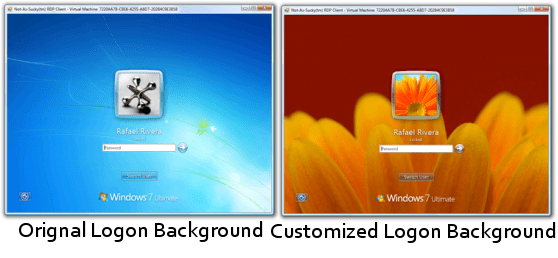
Here is another great finding by <a title“Rafael Rivera” href“http://www.withinwindows.com/2009/03/15/windows-7-to-officially-support-logon-ui-background-customization/” target“_blank”>Rafael Rivera from within windows</a>, you can now<strong> officially change Windows 7 login UI background</strong>. Windows 7 now supports the ability to load images into the background of the login screen without the use of third-party software or manual hacks.<span id“more-2698”></span></p>
<p class“MsoNormal”><img class“alignnone size-full wp-image-2699” title“Customize Windows 7 Logon Background” src“http://www.blogsdna.com/wp-content/uploads/2009/03/customize-windows-7-logon-background.png” alt“Customize Windows 7 Logon Background” height“258” width“558”></p>
<h3>Steps to Change Windows 7 Logon Background Image <span> </span></h3>
<p class“MsoNormal”>1. press win+r key and Type Regedit at run prompt</p>
<p class“MsoNormal”>2. Locate following registry key</p>
<p class“MsoNormal”><strong>HKLM\Software\Microsoft\Windows\CurrentVersion\Authentication\LogonUI\Background</strong></p>
<p class“MsoNormal”>3. Now in right-side pane, change value of <strong>OEMBackground to 1.</strong></p>
<p class“MsoNormal”>4. Now place your custom image in <strong>%windir%\system32\oobe</strong></p>
<p class“MsoNormal”>5. Create a new folder info and background within newly created info folder</p>
<p class“MsoNormal”>Folder path should look like this <strong>%windir%\System32\oobe\info\backgrounds</strong></p>
<p class“MsoNormal”>6. Now place your desired logon wallpaper within this background folder with file name as <strong>backgroundDefault.jpg</strong></p>
<p class“MsoNormal”>Images Name with resolutions</p>
<p class''“MsoNormal”>backgroundDefault.jpg</p>
<p class“MsoNormal”>background768×1280.jpg<span> </span>(0.6)</p>
<p class“MsoNormal”>background900×1440.jpg<span> </span>(0.625)</p>
<p class“MsoNormal”>background960×1280.jpg<span> </span>(0.75)</p>
<p class“MsoNormal”>background1024×1280.jpg (0.8)</p>
<p class“MsoNormal”>background1280×1024.jpg (1.25)</p>
<p class“MsoNormal”>background1024×768.jpg<span> </span>(1.33-)</p>
<p class“MsoNormal”>background1280×960.jpg<span> </span>(1.33-)</p>
<p class“MsoNormal”>background1600×1200.jpg (1.33-)</p>
<p class“MsoNormal”>background1440×900.jpg<span> </span>(1.6)</p>
<p class“MsoNormal”>background1920×1200.jpg (1.6)</p>
<p class“MsoNormal”>background1280×768.jpg<span> </span>(1.66-)</p>
<p class“MsoNormal”>background1360×768.jpg<span> </span>(1.770833-)</p>
<p class“MsoNormal”>Please NOTE: Images must be <strong>less than 256kb</strong> in size</p>
<p class“MsoNormal”>The backgroundDefault.jpg image is loaded and stretched-to-fit when a resolution/ratio specific background cannot be found.</p>